2026-04-04
I'm happy to release Proxelar 0.4.0, which delivers the feature I teased at the end of the 0.3.0 post: intercept mode. You can now pause any HTTP or HTTPS request mid-flight, inspect it, edit whatever you want — method, URI, headers, body — and then choose to forward it or drop it entirely.
Until now, Proxelar could capture and display traffic, and with scripting it could modify traffic programmatically. But there was no way to reach in and change a specific request by hand, on the fly, without writing a script first. Intercept mode fills that gap. You see the request frozen in front of you, exactly as the client sent it, and you decide: forward it as-is, modify it first, or drop it entirely.
When intercept is off, traffic flows through normally — captured, displayed, forwarded. When intercept is on, every request is held. Nothing reaches the upstream server until you act on it. The proxy is paused, waiting for your decision.
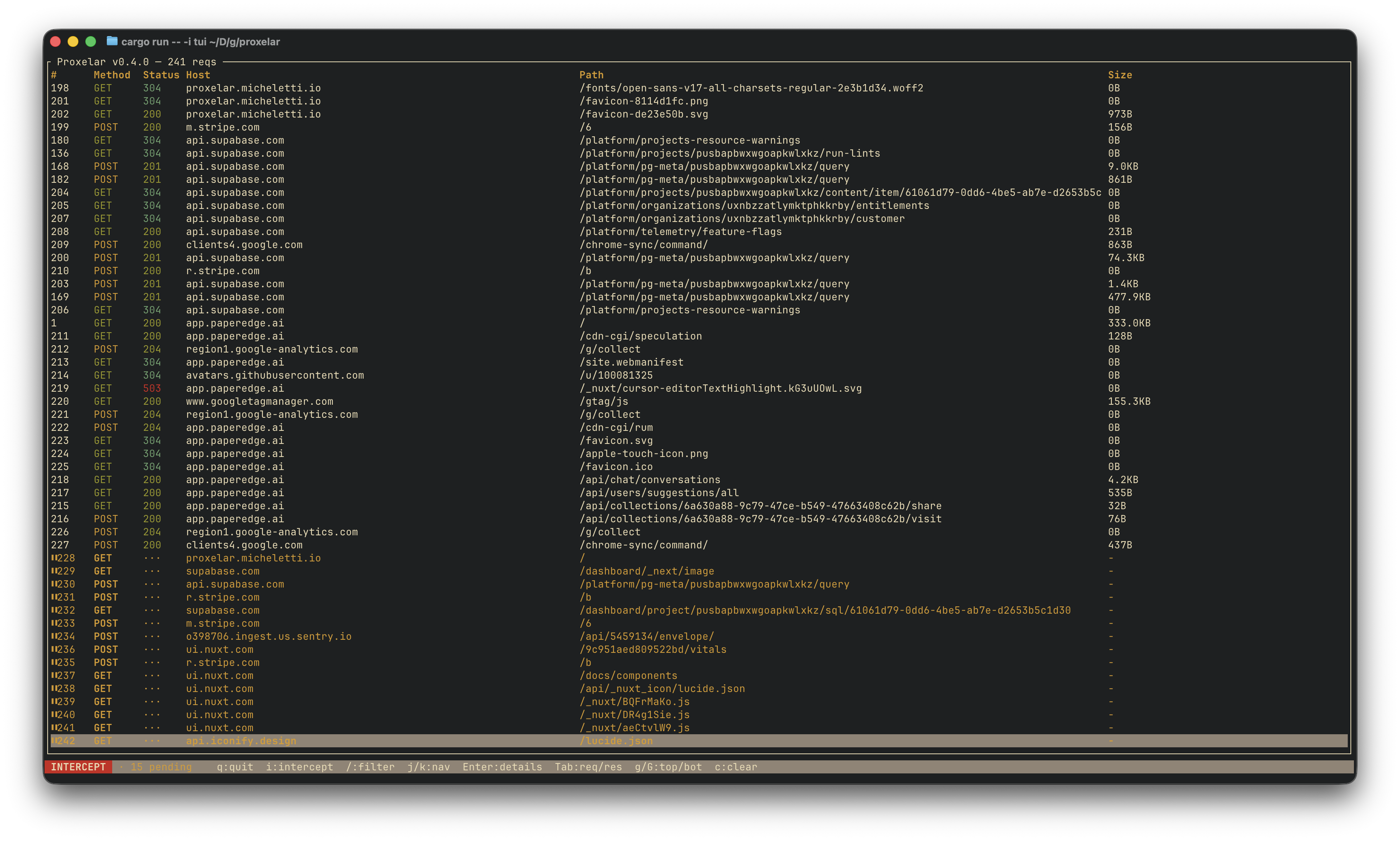
Press i to enable intercept. The status bar shows a red INTERCEPT badge so you always know whether you're in capture-only mode or actively intercepting.
Press i again to turn it off. Any requests that were pending at that moment are forwarded immediately — clients never hang waiting for a response.
When a request arrives while intercept is on, it appears in the request list as a ⏸ row instead of the usual status code. Navigate to it with j/k and choose what to do:
| Key | Action |
|---|---|
f | Forward the request to the upstream server |
d | Drop — returns a 504 Gateway Timeout to the client |
e | Open the inline editor |
Press e and the full raw HTTP request appears in an editor panel. Every part of the request is editable — the request line, headers, blank separator, and body, exactly as they would be written on the wire:
POST /api/login HTTP/1.1
host: example.com
content-type: application/json
authorization: Bearer old-token

{"user":"alice","pass":"secret"}
Change anything. Replace the URL, swap the method, add or delete a header, rewrite the body. The editor supports full cursor navigation:
| Key | Action |
|---|---|
| Arrow keys / Home / End | Move the cursor |
| Enter | Insert a new line |
| Backspace / Delete | Delete characters |
Esc | Finish editing — request stays held, ready to forward |
f | Forward with your edits applied |
d | Drop |
Esc (again, when not typing) | Discard your edits |
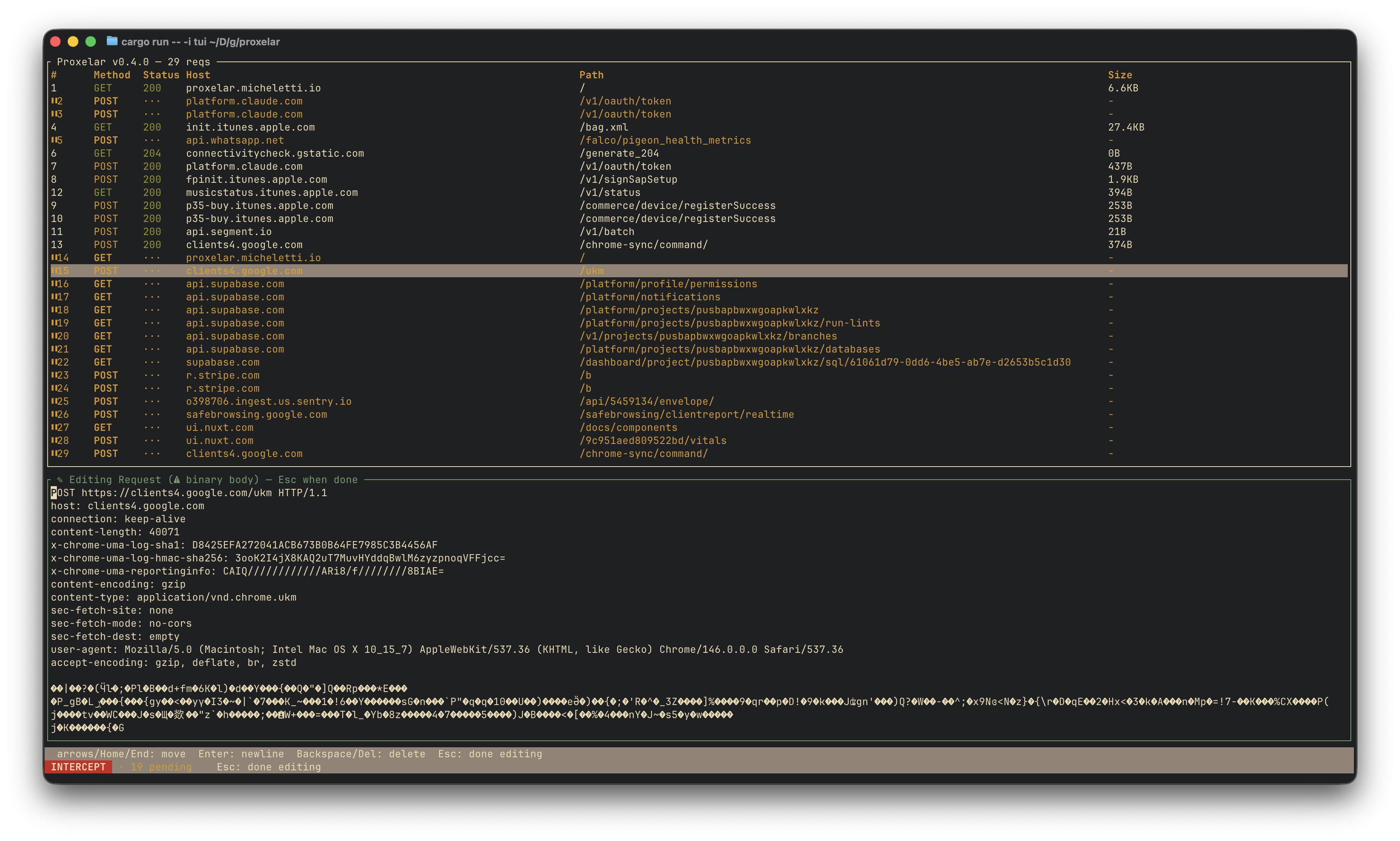
The design is a two-step flow: edit freely, then Esc to stage your changes, then f to forward. This lets you review your edits before committing. If you change your mind and want to discard everything, press Esc again from the idle-in-editor state.
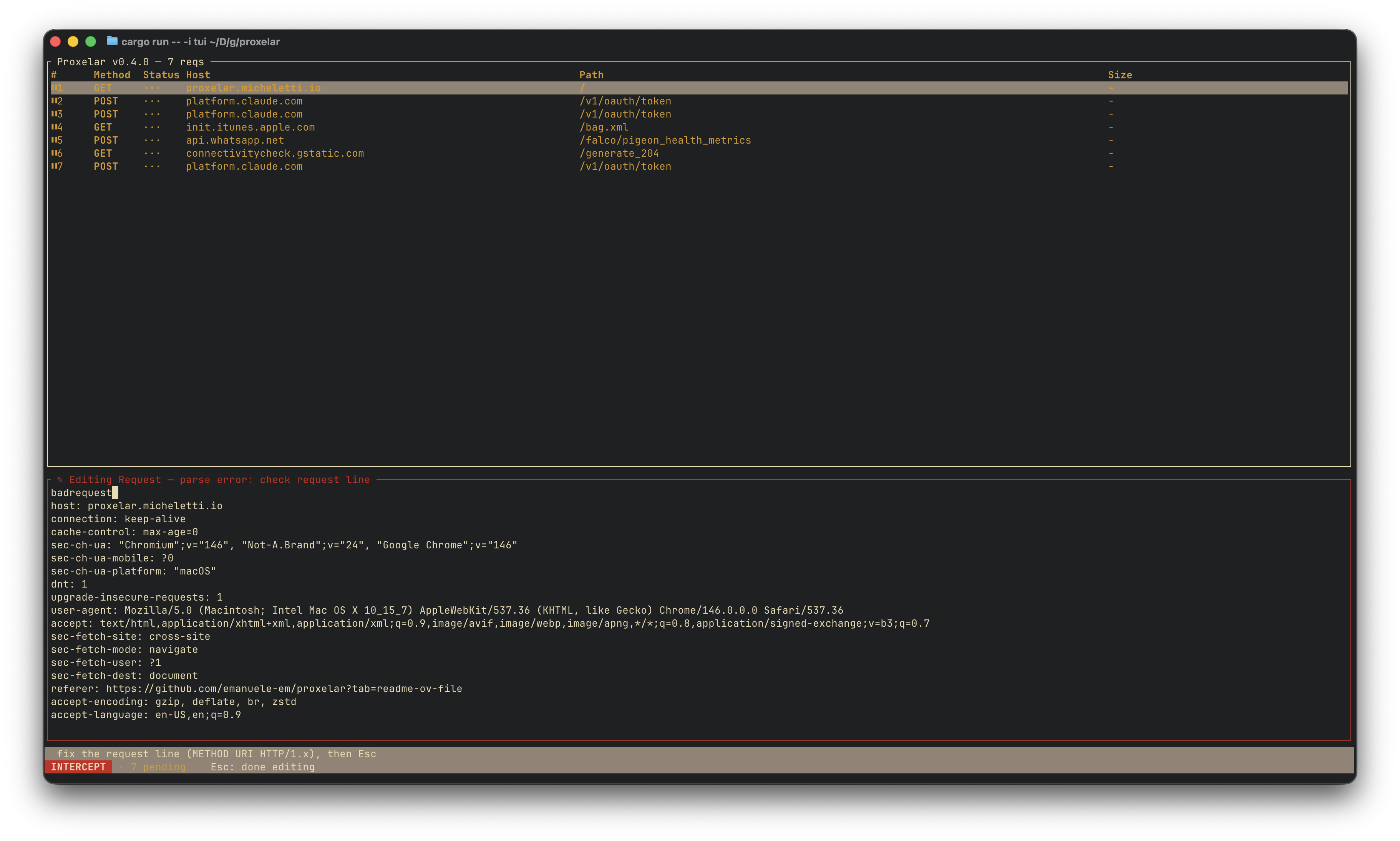
If the request line you wrote is malformed — wrong format, missing HTTP version, unrecognized method — the editor stays open and the border turns red. Fix the line and try forwarding again. The proxy never sends a request it can't parse.
Binary bodies — if the original request body is not valid UTF-8, the editor shows a ⚠ warning. The content is displayed lossily; edits may corrupt binary data, so forward binary-bodied requests without edits or drop them. A future patch will preserve the original bytes when only the method, URI, or headers are changed.
Here is a complete session: a login request caught mid-flight, the token replaced, forwarded to the server:
# Original:
POST /api/login HTTP/1.1
host: api.example.com
content-type: application/json

{"user":"alice","pass":"wrong-password"}

# Edited (in the TUI inline editor):
POST /api/login HTTP/1.1
host: api.example.com
content-type: application/json

{"user":"alice","pass":"correct-password"}

# After pressing f:
→ server receives the corrected request
→ client receives the real response
→ TUI shows the completed exchange as a normal row
No script, no configuration, no restart. You caught it, changed it, forwarded it.
The web GUI gets the same capabilities with a point-and-click interface.
Click the ⏸ Intercept: OFF button in the toolbar to enable intercept. It turns red and starts displaying a count of pending requests — ⏸ Intercept: ON (2) — so you can tell at a glance how many clients are waiting.
Click it again to turn intercept off. All pending requests are forwarded immediately.
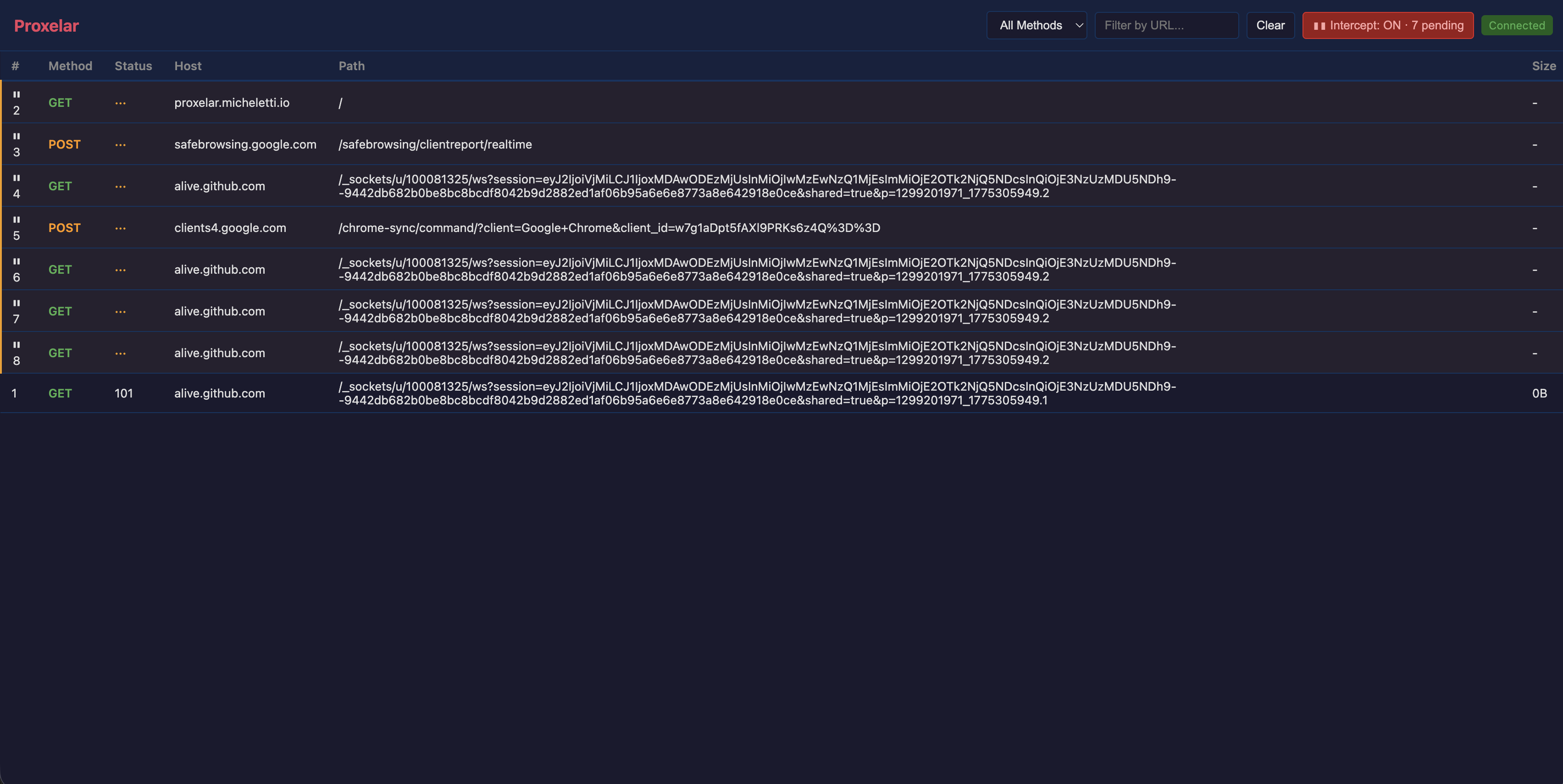
Pending requests appear in the table with an amber left border to distinguish them from completed exchanges. Click a row to open the editor panel.
The panel shows four editable fields:
GET, POST, DELETEEdit whatever you need, then:
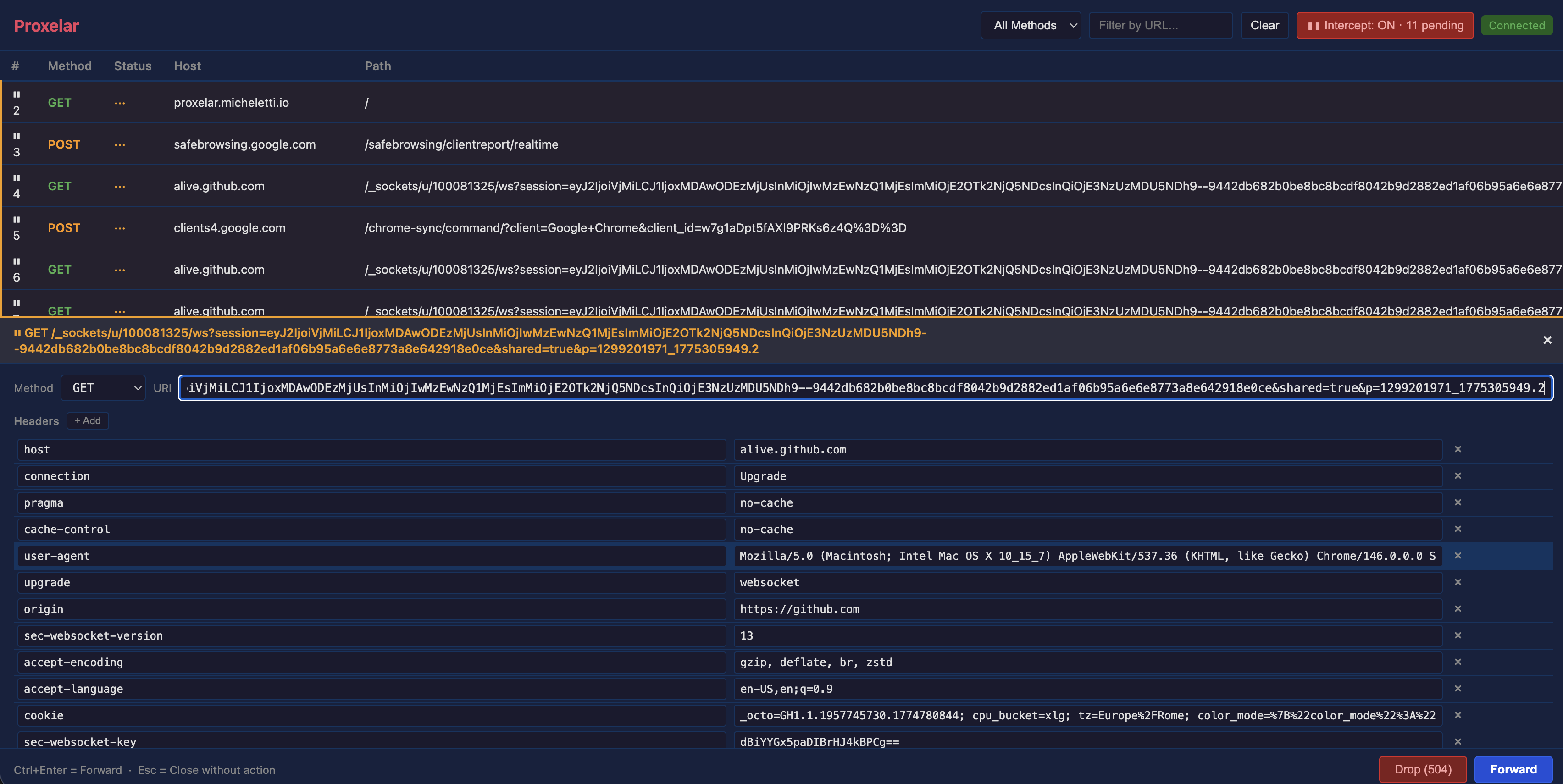
Here's a typical flow in the web GUI: you're testing an API that reads a user ID from the URL. You intercept a GET /api/users/1 request, change the ID to 99, and forward it to see what the server returns for a user you don't have credentials for. Two clicks, no tooling.
You want to verify that your API correctly rejects requests with an expired token. With intercept on, catch a normal request, replace the Authorization header with an expired JWT, and forward:
GET /api/profile HTTP/1.1
host: api.example.com
authorization: Bearer eyJ... (expired token)
The server returns 401. You've confirmed the token validation is working — without touching any client code or adding test infrastructure.
Your frontend sends a request with a hardcoded value you can't easily change without recompiling. Intercept it, replace the value in the body, forward it:
# Original body:
{"plan": "free", "user_id": 42}

# Edited:
{"plan": "enterprise", "user_id": 42}
You just tested the premium code path from your existing client session.
Sometimes you want to know what happens when a request doesn't go through. Drop a specific request mid-session — the client gets a 504, and you observe how it handles the failure without shutting anything down.
Intercept is complementary to Lua scripting. A script is the right tool when you want a rule that applies to every request matching a pattern. Intercept is the right tool when you want to make a one-off decision for a specific request, inspect the result, and move on.
Intercept mode is built around two new types exported from proxyapi:
pub struct InterceptConfig {
    pub enabled: bool,
}

pub enum InterceptDecision {
    Forward(ProxiedRequest),
    Drop,
}
When intercept is enabled, the CapturingHandler emits a RequestIntercepted event with the request and a oneshot channel instead of forwarding immediately. The interface layer — TUI or web GUI — receives the event, holds the request in a pending list, and waits for the user's decision. When the user acts, an InterceptDecision is sent back through the channel and the proxy forwards or drops accordingly.
The RequestIntercepted event carries the same stable ID that the eventual RequestComplete event will use, so the interface can correlate the pending row with the completed exchange after the request goes through.
Turning intercept off drains the pending queue by sending InterceptDecision::Forward for each waiting request. This is why clients don't hang: the proxy never leaves a oneshot receiver without a sender.
One edge case worth knowing: if a client times out while its request is pending, it drops the TCP connection. The row stays in the UI — the proxy has no way to know the client gave up. If you then forward, the upstream response has nowhere to go and the write fails silently. The proxy handles this gracefully, but the pending row will linger until you act on it or toggle intercept off.
The parse-error path in the TUI editor validates the edited request before forwarding. If the request line doesn't parse — wrong number of parts, unrecognized method, bad HTTP version — the editor returns an error and the border turns red. The forward is not attempted until the input is valid.
Two bugs were fixed in this release along the way:
innerHTML, which would execute arbitrary HTML in header values. It now uses proper DOM construction methods.insert when writing edited headers back, which silently dropped all but the last value for headers like Set-Cookie. They now use append.Update Proxelar:
cargo install proxelarRun the proxy:
proxelar          # TUI (default)
proxelar -i gui   # Web GUI at localhost:8081
In the TUI, press i to toggle intercept. In the web GUI, click the intercept button in the toolbar. Browse normally — or point curl at the proxy with --proxy http://127.0.0.1:8080 — and watch requests arrive as ⏸ rows.
The full documentation for intercept mode is at proxelar.micheletti.io/intercept.html. The complete changelog is on GitHub.
Intercept mode closes the gap between passively watching traffic and actively controlling it. The remaining items from the 0.3.0 roadmap are still the priority:
iptables or pf so no client proxy configuration is needed. Critical for mobile and IoT testing.