2026-03-15
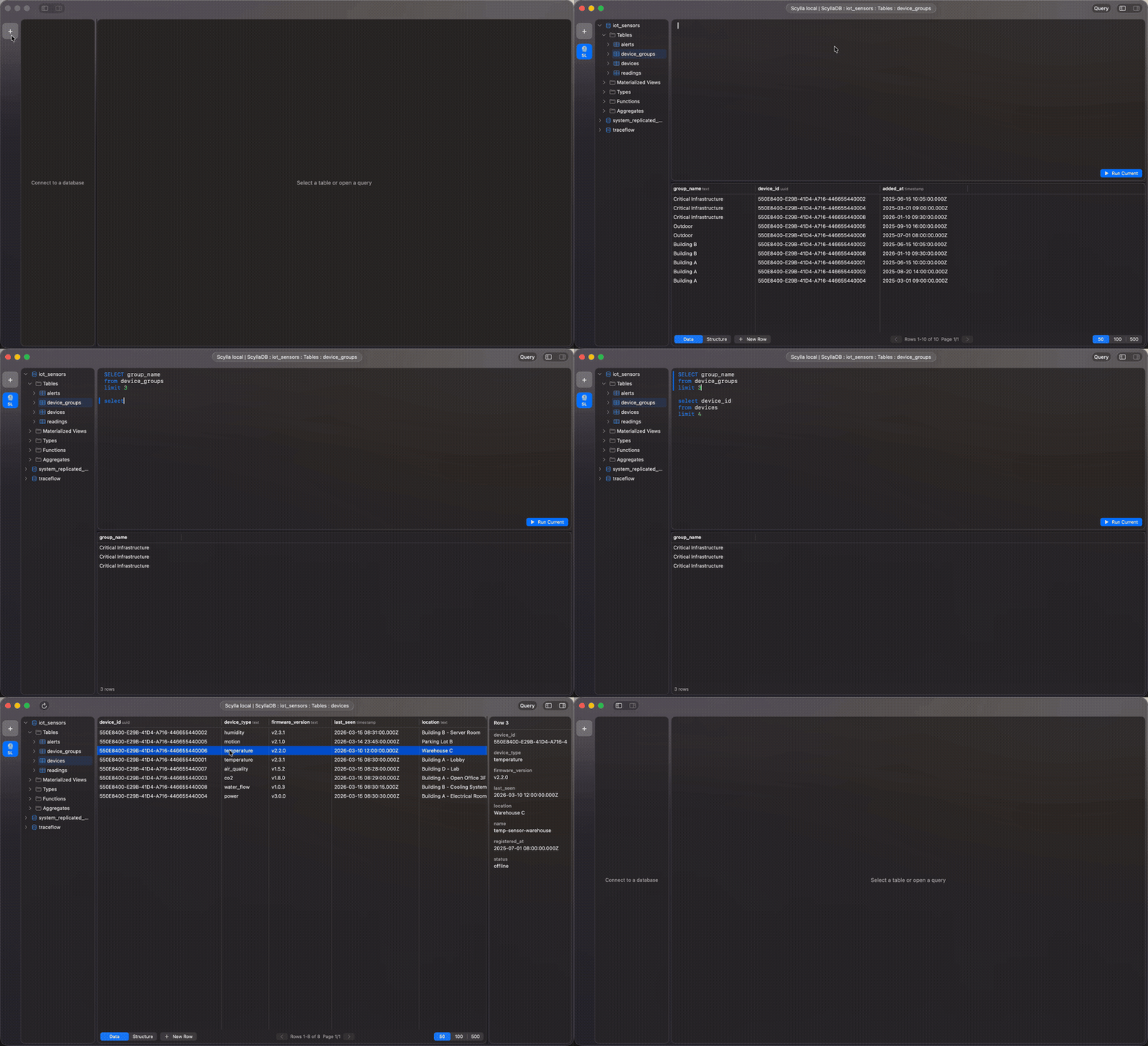
I'm releasing Cove 0.0.0, a native macOS database client built entirely in Swift and SwiftUI. It supports PostgreSQL, ScyllaDB, and Redis out of the box, with a pluggable architecture that makes adding new backends straightforward. No Electron, no web views — just a fast, lightweight, native app.
Most database clients are either Electron apps that eat memory for breakfast, or legacy native apps that haven't been updated in years. DBeaver ships a new release every two weeks, which I find oddly comforting given that the experience has remained identical since 2013. I wanted something that feels like a proper macOS citizen — fast startup, native controls, Keychain integration — while supporting the databases I actually use. Let's walk through what's in this release.
I built Cove with contributions in mind from the start. Not just human contributors — LLMs too. The architecture had to be obvious enough that someone opening the project for the first time could add a new database backend without reading the entire codebase, and structured enough that an LLM could do the same given the right context.
The result is a single Swift protocol — DatabaseBackend — that every database driver implements. The protocol defines around 20 methods covering hierarchy browsing, data fetching, query execution, inline editing, SQL generation, and autocomplete. The UI code never checks which backend is active. Browsing a Redis instance feels the same as browsing a Postgres database: same tree navigation, same editing workflow, same query interface.
Each backend is split into five focused files following a consistent pattern:
Cove/DB/Postgres/
  ├── PostgresBackend.swift       # connection, keywords, pooling
  ├── PostgresHierarchy.swift     # schema → table → column tree
  ├── PostgresDataOps.swift       # fetchTableData, executeQuery
  ├── PostgresSQLGen.swift        # UPDATE/INSERT/DELETE generation
  └── PostgresDecoders.swift      # QueryResult parsing
ScyllaDB and Redis follow the same structure. Adding a new backend — say, MySQL or MongoDB — means creating a new folder, implementing the protocol, and adding a case to the BackendType enum. Zero UI changes required. A human can follow the pattern by looking at any existing backend. An LLM can do it with just the protocol definition and one example. That was the whole point.
The first three backends are the databases I actually use every day at work. I built what I needed first.
PostgreSQL connects via postgres-nio with full SQL support, TLS connections, and per-database connection pooling. The keyword set covers DDL, DML, joins, window functions, and Postgres-specific types like JSONB and UUID. Client instances are cached per database with NSLock for thread safety, so switching between databases in the same connection doesn't re-establish the link.
ScyllaDB uses swift-cassandra-client and speaks the native Cassandra protocol. CQL keywords power the syntax highlighter and autocomplete engine. The hierarchy maps keyspaces to tables to columns, matching ScyllaDB's data model.
Redis is the odd one out — it's a key-value store, not a relational database. The backend organizes keys by data type (strings, hashes, lists, sets, sorted sets, streams) and presents them in the same tree structure. The query editor accepts Redis commands directly. Connection pooling is handled via NIO's EventLoopGroup.
The obvious ones are next. In the upcoming patch versions I plan to add MySQL, SQLite, MongoDB, MariaDB, and Cassandra support. The protocol-based architecture was designed exactly for this — each new backend is an afternoon of work — or a couple of hours with an LLM.
Cove wraps AppKit's NSTableView in SwiftUI for native table performance and familiar macOS behavior — column resizing, sorting by header click, keyboard navigation with arrow keys. But the interesting part is inline editing.
Click any cell to edit it. The cell turns orange to indicate a pending change. New rows show a green background, deleted rows turn red. None of these changes hit the database immediately.
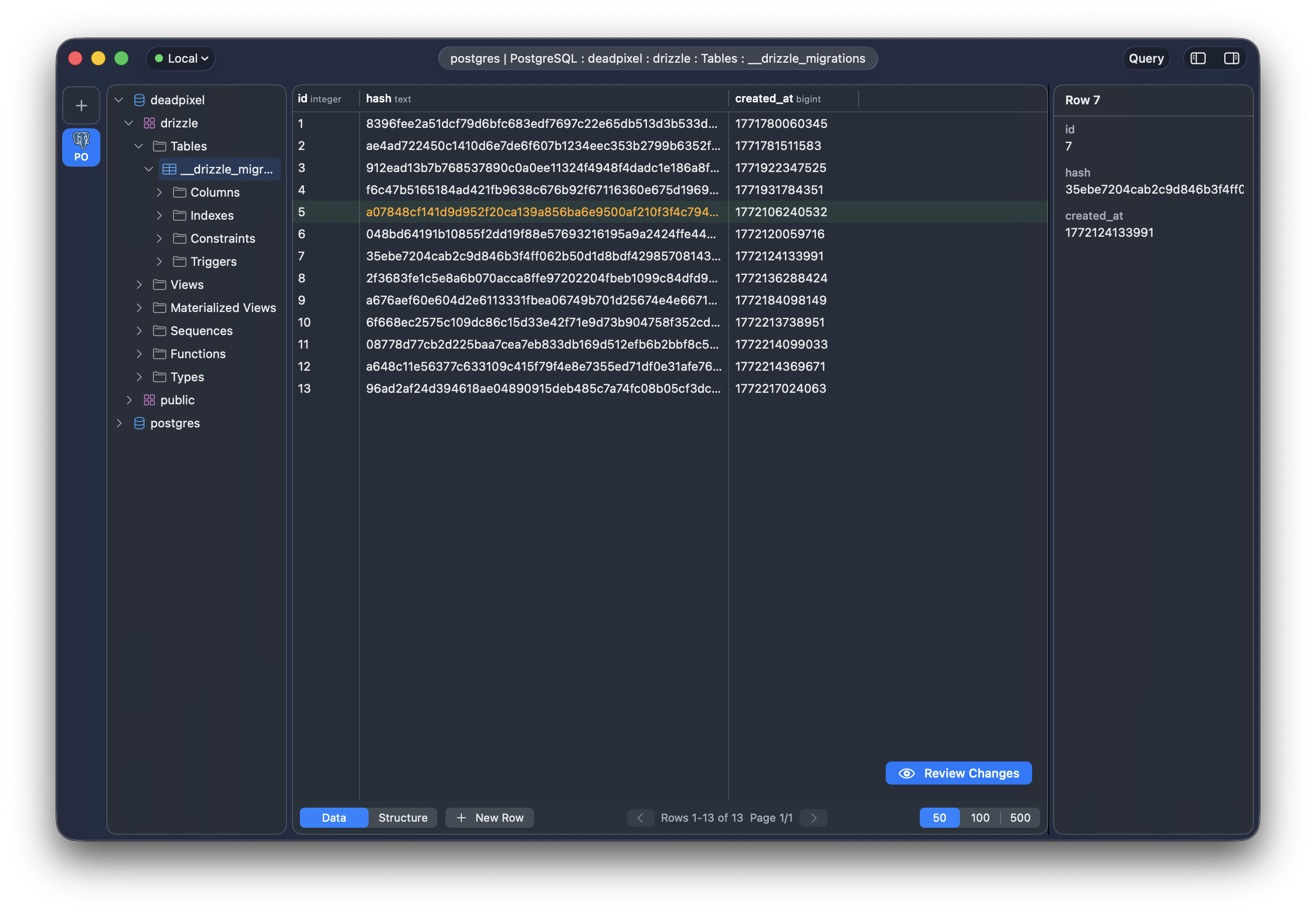
Instead, pressing Cmd+S opens a SQL preview sheet showing the exact UPDATE, INSERT, or DELETE statements that will be executed. Only after confirmation do the changes commit. This gives full visibility into what's about to happen, which matters especially when pointing at a production database.
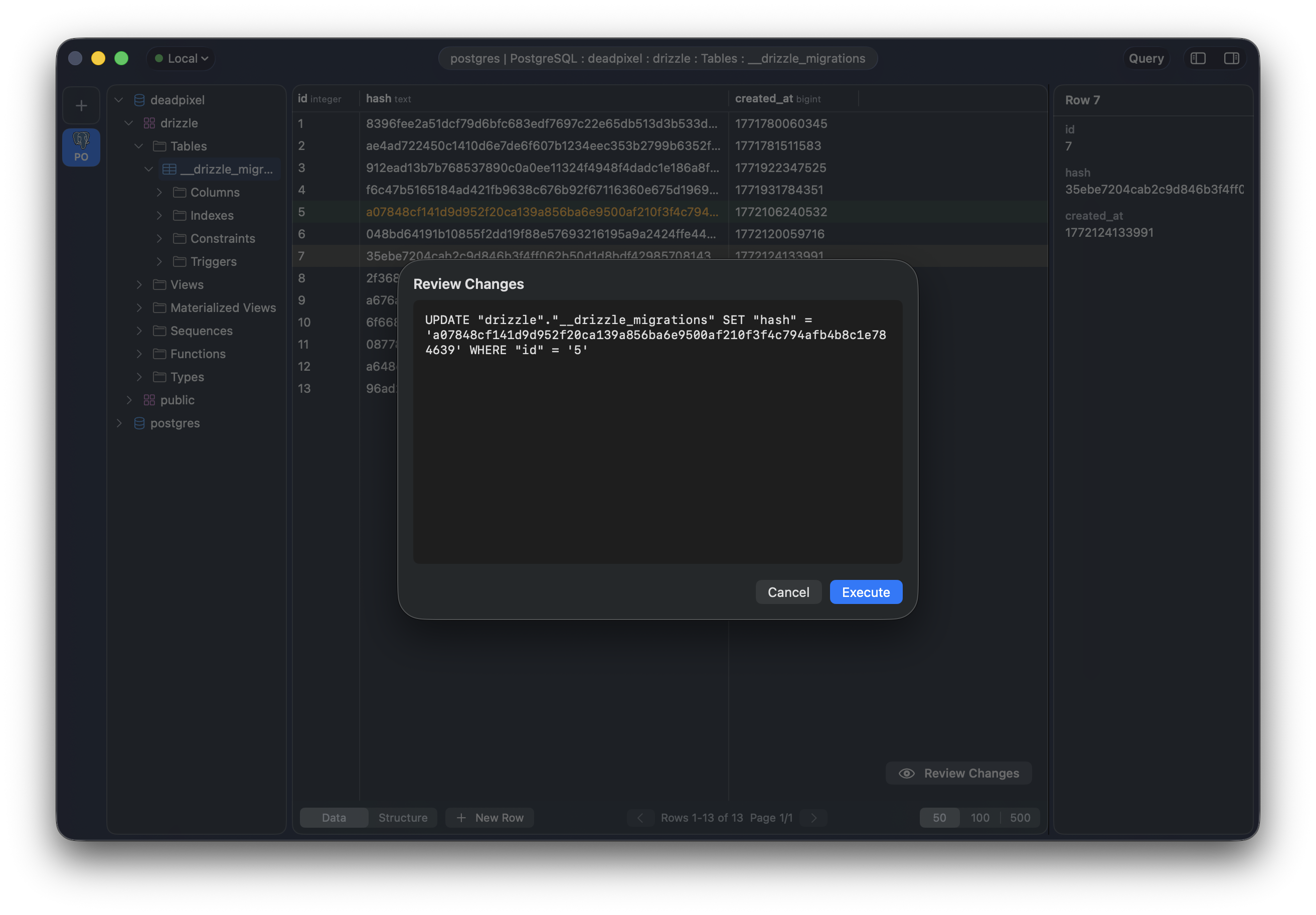
Keyboard shortcuts cover the common operations: Cmd+C to copy a cell, Cmd+R to refresh, Tab/Shift+Tab to navigate between cells, Escape to discard edits, Return to commit. Pagination is configurable at 50, 100, or 500 rows per page.
The query editor is built on NSTextView with a custom tokenizer that colorizes SQL in real time. The tokenizer is a hand-written lexer that processes UTF-16 codepoints and recognizes keywords, string literals, numbers, single-line comments (--), and block comments (/* ... */). Each backend provides its own keyword set, so the highlighter adapts automatically — SQL keywords for Postgres, CQL keywords for ScyllaDB.
Autocomplete is context-aware. The CompletionEngine analyzes the cursor position and offers different suggestions depending on where you are in a query:
FROM or JOIN — table namesWHERE or in expressions — column names and functionsThe engine resolves aliases too. If you write FROM users u JOIN orders o, then typing u. completes with columns from the users table. It handles comma-separated FROM clauses, all JOIN types, and basic subqueries. Suggestions pop up after a 100ms debounce, capped at 50 items, and you can navigate them with arrow keys or Tab to insert.
This is the feature I've wanted in every database client I've ever used, and none of them have it.
When you have multiple SQL statements in the editor, a thin blue bar appears on the left margin highlighting the statement the cursor is currently inside. That's it. You always know exactly which query will run when you hit the execute button. No selecting text, no hoping you got the right semicolon boundary, no accidentally running a DROP when you meant to run the SELECT above it.
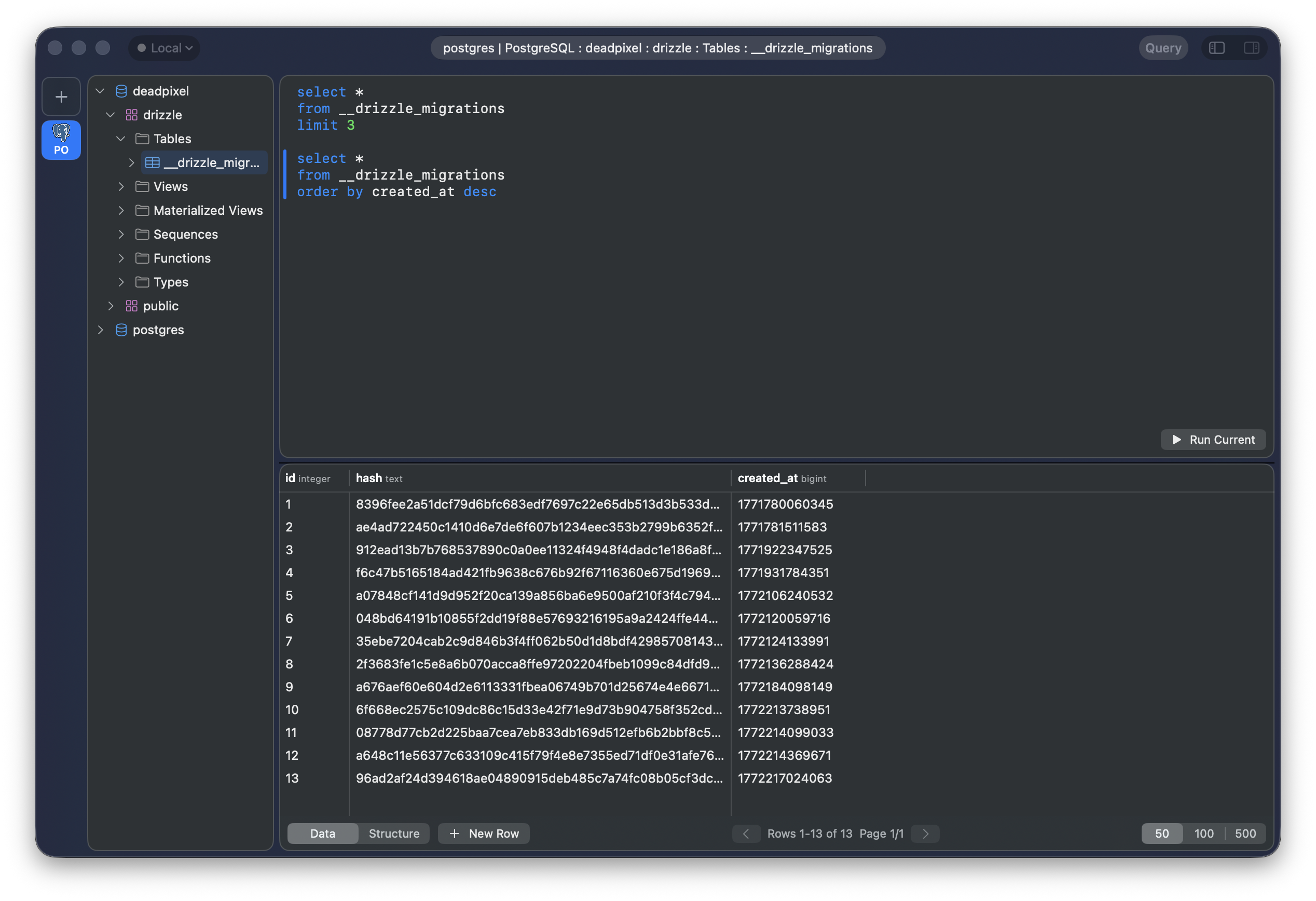
Move the cursor to a different statement, and the bar follows.
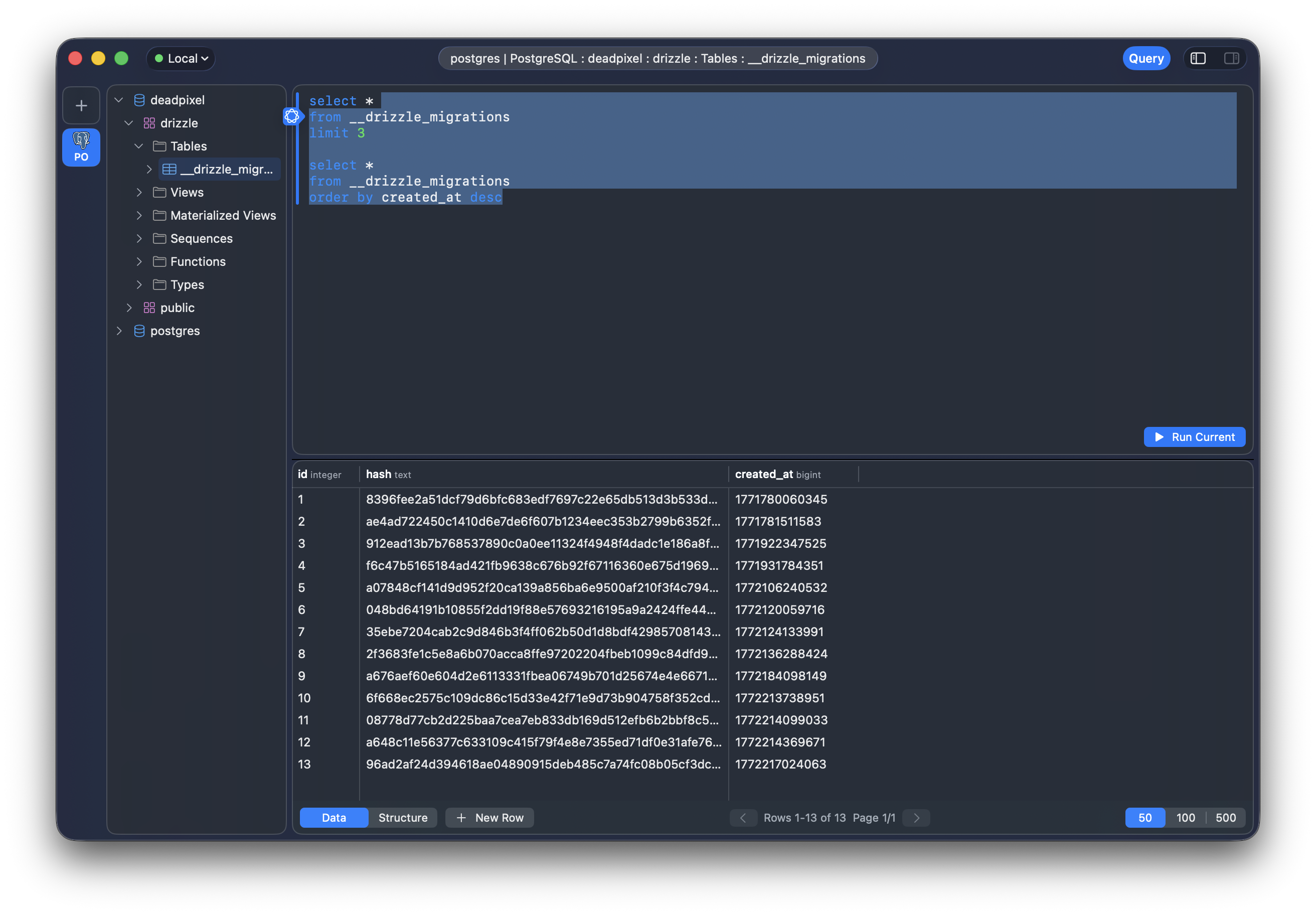
It sounds trivial, but after years of writing multi-statement scripts in database clients and second-guessing which statement is about to fire, this small piece of visual feedback changes the entire experience. I'm genuinely surprised no one else has done this.
Connecting to databases behind firewalls is a first-class feature. Cove's SSH tunnel implementation uses Swift NIO's NIOSSH library with support for both password and private key authentication.
For private keys, the loader handles multiple formats: OpenSSH, PEM (PKCS#8 and SEC1), and modern curves including Ed25519, P-256, P-384, and P-521. Encrypted keys are supported too — Cove detects the encryption, prompts for the passphrase, and decrypts via the system's ssh-keygen. Error messages distinguish between wrong passphrases and unsupported key formats.
The tunnel establishes a local TCP server on an auto-selected port, then bridges traffic bidirectionally between the local socket and the remote SSH channel using custom NIO ChannelDuplexHandlers. A 10-second connection timeout prevents indefinite hangs, and a test channel verifies authentication before reporting success.
The connection rail — a vertical sidebar on the far left — shows all saved connections as color-coded pills. Each connection is tagged with an environment: Production, Staging, Development, or Local. The toolbar displays a colored dot matching the active environment, so there's always a visual reminder of where you're pointing. You can filter connections by environment via the toolbar picker.
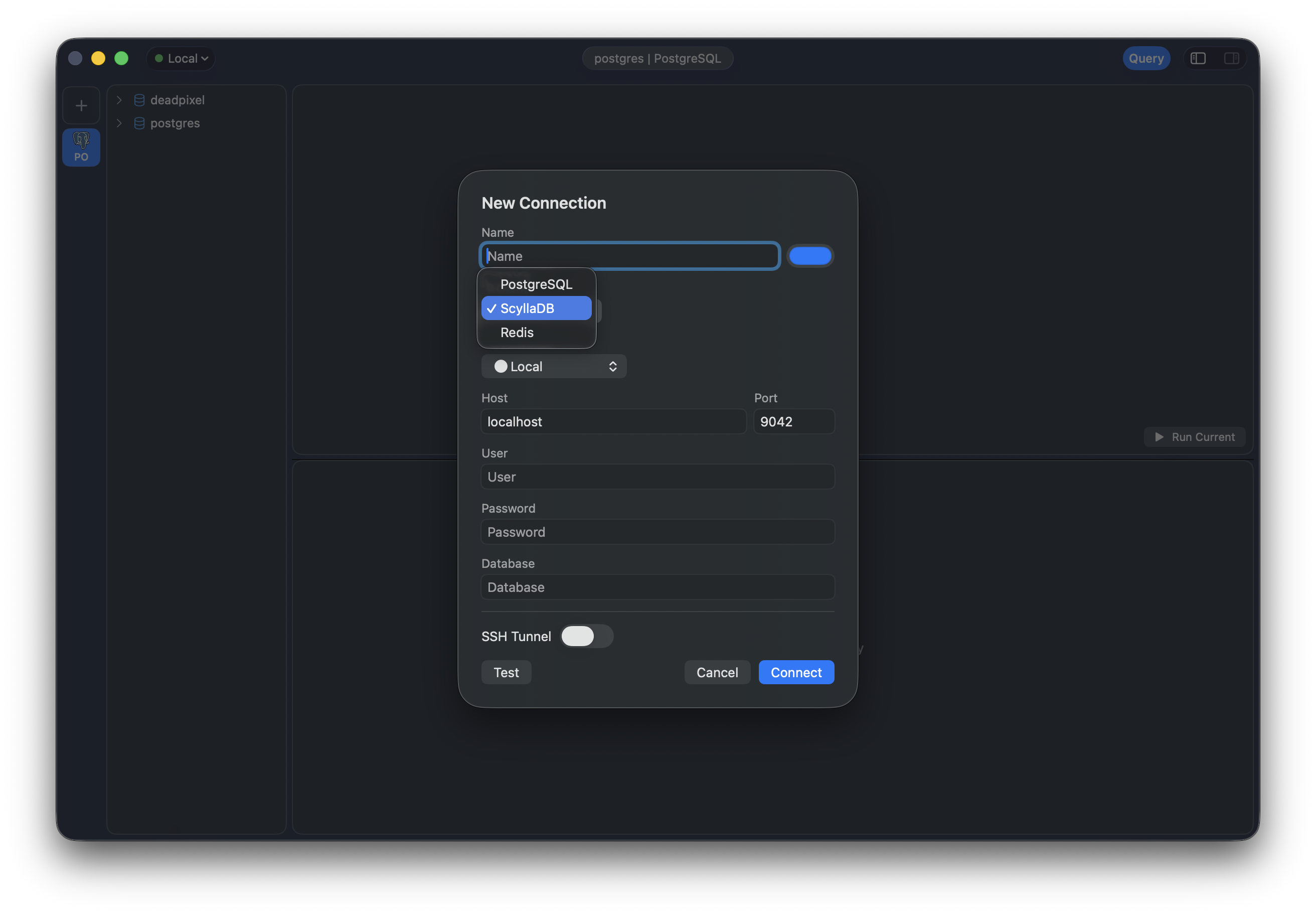
Connection details (name, backend, host, port, database, SSH configuration) are stored as JSON in ~/Library/Application Support/Cove/. Passwords are excluded from the JSON entirely — they're stored in the macOS Keychain under the com.cove.app service, bound to the user's login keychain via kSecUseDataProtectionKeychain. Three credentials per connection are handled separately: database password, SSH password, and SSH key passphrase. There's also an automatic migration path: if Cove detects an older config file with plaintext passwords, it moves them to the Keychain and re-saves the JSON without credentials.
The codebase is organized into four layers:
DatabaseBackend protocol, three backend implementations (15 files), SSH tunneling, connection configuration, and the autocomplete engine@Observable classes for app state, tree navigation, table display, query editor, and dialogs. Uses Swift 6's @Observable macro for fine-grained reactivity without @Published boilerplateThe whole thing is written in Swift 6 with structured concurrency, targeting macOS 15+. About 9,000 lines of Swift across 49 files, with a self-imposed ~300 line limit per file. Everything runs on @MainActor with async/await — no blocking the UI thread.
Clone and build with Xcode:
git clone https://github.com/emanuele-em/cove.git
cd cove
xcodebuild -scheme Cove -derivedDataPath .build build
Or just open Cove.xcodeproj in Xcode and hit Run. Requires macOS 15 (Sequoia) or later.
This is an early release. The core browsing, editing, and query workflow is solid, but there's more to come:
Feedback and contributions are welcome on GitHub.
P.S. — Some of the screenshots show UI elements from future releases. I took them during development and didn't bother retaking them for the v0.0.0 announcement. Consider it a spoiler.